Introduction
Subgroups allow you to define and save a set of columns for crosstabs that can be reused across multiple tasks within a project. By creating a subgroup, you can apply the same predefined columns with a single click, ensuring consistency and saving time when working with crosstabs across different tasks.
Using Subgroups in the Crosstab Visualization
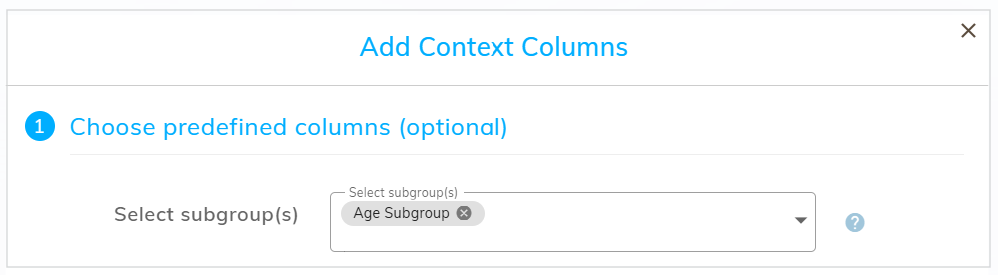
To use a subgroup, open the "Add Context Columns" dialog and select the desired subgroup. All predefined columns in that subgroup will be added automatically, and you can still add additional context columns if needed. The option to select a subgroup will only be available if the project has any subgroups defined.
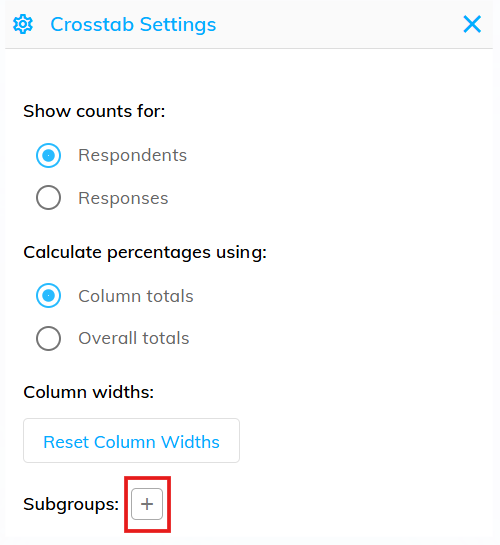
The subgroups can be defined in Crosstab Settings. Please note that only Company Administrators have access to manage these subgroups in Crosstab Settings.
Managing Subgroups
To add a new subgroup, click the "Add Subgroup" button in Crosstab Settings.
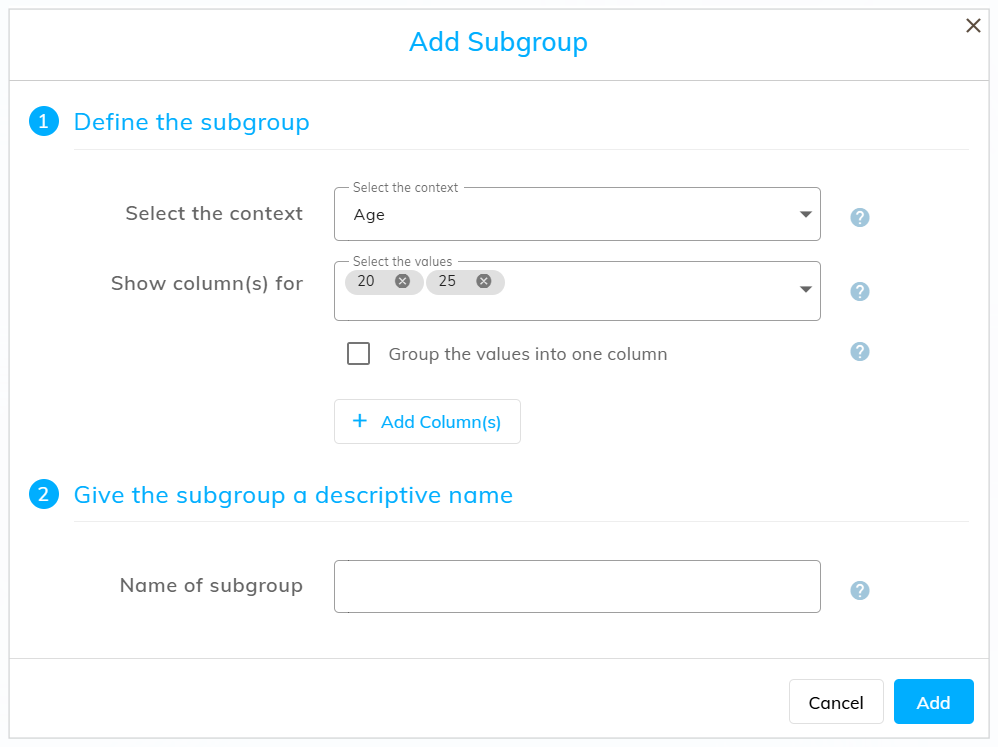
This will display the "Add Subgroup" dialog, allowing you to define subgroups by selecting different context variables and choosing the required values for each.
Optionally, you can group multiple context values together in a single column, by selecting the "Group the values into one column" checkbox. This can be useful for continuous variables, such as Age, where you want to group a set of values together rather than analyse each value separately.
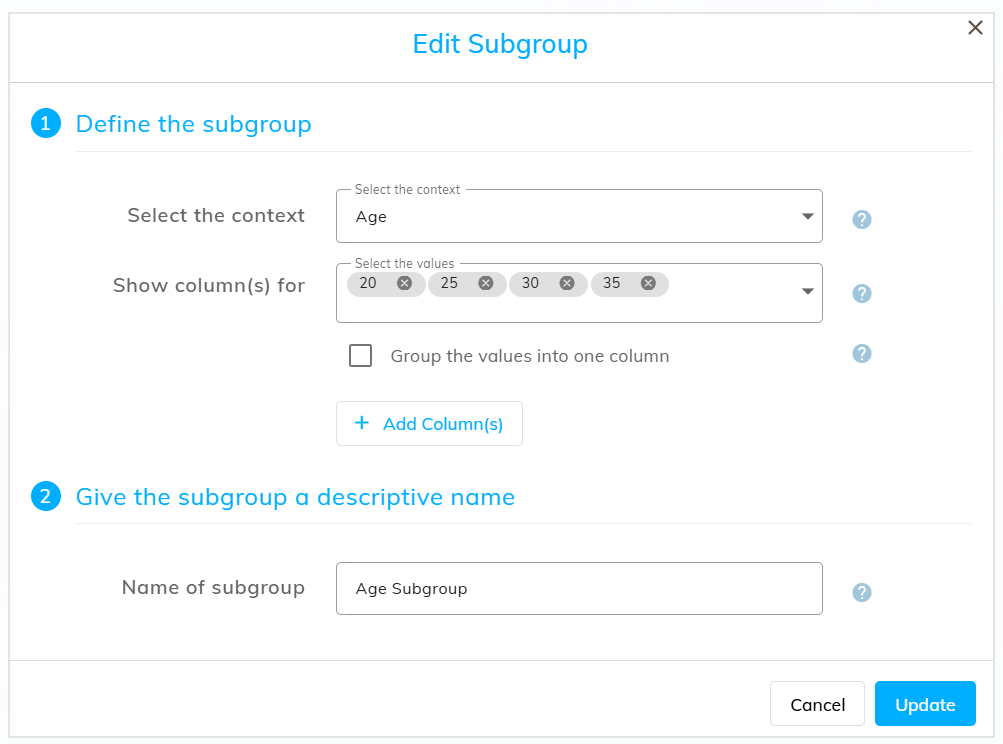
Use the "Edit" and "Delete" options to modify or remove a subgroup as needed.
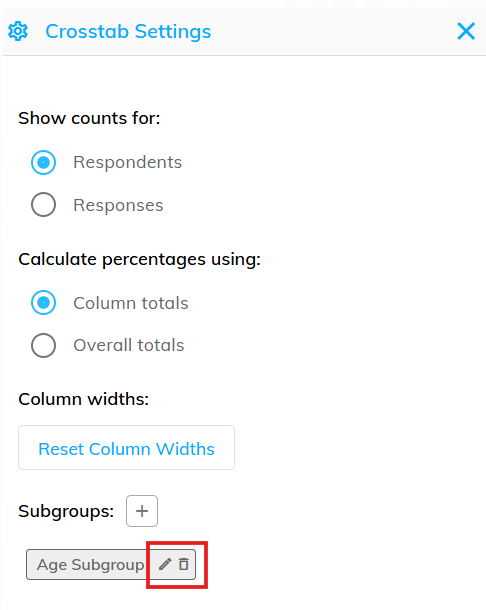
The "Edit Subgroup" dialog allows you to modify an existing subgroup. You can edit the subgroup name, add new variables, update or remove existing ones, giving you full control over the subgroup setup.