
Introduction
The Settings panel within the Project Details page displays the Project settings
Accessing the Settings panel
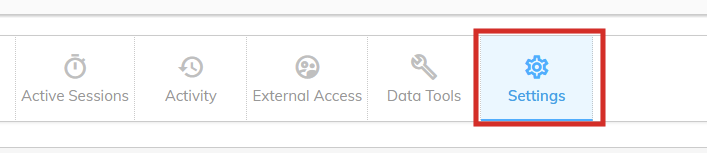
To view the Settings panel, click the "Settings" button in the ribbon within the Project Details page.
Panel columns
The Settings panel displays a table of information with the following settings:
| Column | Description |
|---|---|
| Allow Records Export in Coding Screen | If set to Yes, it allows the users to export records from the coding screens. Defaults to Yes |
| Allow Codeframe Export in Coding Screen | If set to Yes, it allows the users to export codeframes from the coding screens. Defaults to Yes |
| Allow Inconsistency Report Export in Coding Screen | If set to Yes, it allows the users to export the inconsistency report from the coding screens. Defaults to Yes |
| Enable Partial Text Matching Option In AI Settings | If set to "Yes", the "Enable Partial Text Matching" option will be displayed in the AI settings. This feature automatically assigns codes to verbatims when a codeframe label appears anywhere within the text, even if it’s not an exact match to the entire verbatim. Defaults to No |
| Auto archive period (days) | The number of days after which a project is automatically archived. See our Data Retention Policy for details. Defaults to 90 |
| PII Category(s) to be removed | The list of PII categories which will be removed by the codeit AI when a variable has been toggled for PII removal. For more details about PII, view here Defaults to the following categories: Person, Person Type, Phone Number, Organization, Address, Email, URL, IP Address, Date, Age |