
Introduction
The Verbatim Panel within the Manual Coding screen allows you filter the records displayed based on the values in a given column. This is similar to an Autofilter in Excel where you only show rows that meet a certain condition.
This can be useful when you want to focus in on a specific set of records (e.g. A given demographic, row number, or verbatim text).
Accessing Filters
To filter data on a column click the filter icon within the header of that column:
Simple Filtering
After clicking the filter icon, a dialog will appear. You can apply a basic filter by entering text that you want to filter on.
For example, by filtering on a "Gender" column and entering "Female" the records will be filtered and only show records where the Gender value is "Female"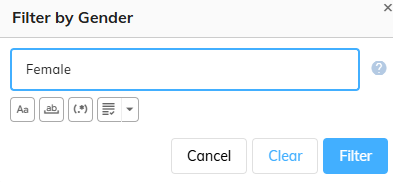
Filtering Syntax
In addition to simple filtering on a single text value, the filter text box also supports filtering using more advanced expressions. The filter text box supports the standard codeit text expression syntax.
Filter Options
The filter dialog also offers a set of filter option buttons for more refined filtering.
The following table contains a brief description of each of these four options:
| Icon | Option | Description |
|---|---|---|
 | Match Case | Selecting this option will make your filter case sensitive. With this option on, a filter on "female", for example, will not match "Female" values in your data. If this option is not used, filters are treated as case insensitive. |
 | Match Whole Word | Selecting this option will restrict the filter to match your search text as a whole word only. For example filtering on "Cost" will match "Cost" within your data only if it is a whole word, and therefore won't match against "Costly", for example. |
 | Match Regular Expression | Allows you to enter a search pattern, using Regular Expression syntax, rather than a literal text search. |
 | Precise Matching Options | Offers a number of more precise filtering options for more advanced filtering (see table below). |
Precise Matching Options
For more advanced filtering, the "Precise Matching Options" dropdown offers a number of options. For example, you may want to filter on records that start or end with a given value. Or you might want to filter on records that don't contain a certain value.
The following table contains a brief description of these options:
| Option | Description |
|---|---|
| Exact Match | Filters on records that contain the exact search term only within the filter column value |
| Contains | Filters on records that contain the search term anywhere within the filter column value |
| Starts With | Filters on records where the filter column value starts with the search term |
| Ends With | Filters on records where the filter column value ends with the search term |
| Not Equals | Filters on records where the filter column value is different to the search term |
| Not Contains | Filters on records where the filter column value does not contain the search term |
| Includes List | Filters on records where the filter column contains any of a list of specified values |
| Excludes List | Filters on records where the filter column does not contain any of a list of specified values |