Introduction
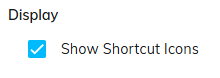
Within the Codeframe Panel settings in codeit you have the option of toggling on or off the shortcut icons for each theme in the codeframe.
Shortcut Icons
The shortcut icons appear to the right of each theme or net within the codeframe. They provide a convenient and quick way to access common theme and net actions.
Net Actions
For each Net in a Codeframe, the following shortcut icons are available:
| Icon | Action | Description |
|---|---|---|
 | Add Theme | Adds a new Theme to a Net |
 | Add Sub Net | Adds a new Sub Net to a Net |
 | Rename Net | Allows you to edit the text label assigned to a Net |
 | Show Coded As Net | Filters the Verbatim Panel to show records with one or more Themes applied from within a Net |
Theme Actions
For each Theme in a Codeframe, the following shortcut icons are available:
| Icon | Action | Description |
|---|---|---|
 | Rename Theme | Allows you to edit the text label assigned to a Theme |
 | Show Coded As Theme | Filters the Verbatim Panel to show records with a given Theme applied |
 | Show Suggestions | Filters the Verbatim Panel to show records that the codeit AI suggests a given Theme could be applied |
 | Show Description | Displays the Description associated with a Theme, Descriptions can either be manually created by a user, or automatically generated by the codeit AI. |
 | Display Merged Themes | Displays any Sub Themes that have been merged into a given Theme. Themes may be merged manually by a user, or automatically by the codeit AI. This gives you the option to unmerge items either to reverse a previous merge, or to pull out more detailed themes when greater granularity is required. |
Steps Required
To change the Show Shortcut Icons setting, follow these steps:
- Click the cog icon in the top right of the Codeframe Panel
- Toggle on/off the "Show Shortcut Icons" setting within the Display section: