Introduction
The main Verbatim Panel in codeit has the ability to display a wide range of columns. Different columns will be needed at different times, so the Column Selector within the Toolbar Panel allows you to pick and choose which columns are displayed.
Steps Required
To access the Column Selector, follow these steps:
- Click the Column Selector dropdown arrow located in the top-right of the screen
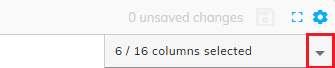
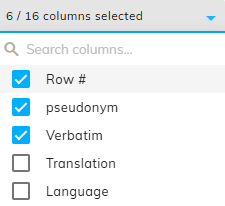
- From the list of available columns, tick/untick the relevant items to show/hide columns within the Verbatim Panel.
Standard Columns
The following table contains list of the standard columns available for selection and a description for each:
| Column | Description |
|---|---|
| Row # | Similar to Excel, a sequential row number is displayed for each record in the Verbatim Panel. This is mostly to keep you orientated, so you know where you are in the list. It can also be used for filtering, or to jump to a specific row in the data. |
| <ID> | Contains the unique ID values within your data. The column title shown will be based on the ID field(s) selected during import |
| Verbatim | Contains the Verbatim text values to be coded, |
| Translation | Contains the translated text (if available) for each Verbatim. |
| Language | Displays the Language for each Verbatim |
| Notes | Displays a column so that notes can be added, viewed and edited for each Verbatim |
| Codes | Contains a coding textbox for each verbatim that can be used to edit the codes applied to each Verbatim |
| Project | Displays the name of the Project that each Verbatim belongs to |
| Wave | Displays the name of the Wave that each Verbatim belongs to |
| Task | Displays the name of the Task that each Verbatim belongs to |
| Sub-Variable | Displays the name of the Sub-Variable that each Verbatim belongs to |
| Length | Displays the length (i.e. number of characters) of the Verbatim text |
| Coverage | Displays the extent to which the codes applied cover the entirety of the text in each Verbatim. |
| # Codes Applied | Displays a count of the number of codes applied to each Verbatim |
| QA Status | Displays Quality Checking status of each Verbatim |
| Changed Data | Displays a timestamp showing when each record was last changed. |
Context Columns
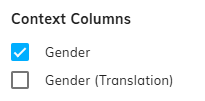
In addition to the standard columns above, you can also display data from any other Variable within your Project.
Variables displayed in this way are called "Context Variables" because they provide additional contextual information to the coder while they are working on the data.
For example, it may be useful to display NPS scores as a context variable so the coder can infer whether short or ambiguous verbatims are positive or negative.
To add a Context Variable to the Verbatim Panel, follow these steps:
- Click the "Select Context Columns" button at the bottom of the Column Selector dropdown:
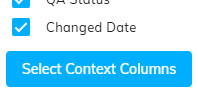
- Select the Variables you want to include from the dialog displayed
- Press Update
Translated Context Columns
If a Context Variable has been auto or manually translated, the Column Selector will allow you to select the original and/or translated version for display in the Introducing the Verbatim Panel.