Introduction
When analysing frequencies of themes within your data, sometimes your analysis just needs to count all of the respondents in your data. Other times, it also makes sense to compare the results amongst different subgroups within the data. For example, you may want to compare younger vs older respondents, customers vs non-customers, Product A vs Product B and so on.
The crosstab visualisation allows you to perform this kind of analysis by generating a table of data with your themes as rows and sub-groups as columns.

Default display
By default the "crosstabs" visualisation in themeit will display two columns:
- "Theme" - which contains the themes and nets within your codeframe
- "% Respondents (Matches)" - which contains the counts and percentages. The percentages are using the column totals by default. For more details about the percentages, see below "Crosstab Settings"
Adding columns to crosstabs
To add further columns (or "breaks") to the crosstab, click the "Add Columns" button in the header. 
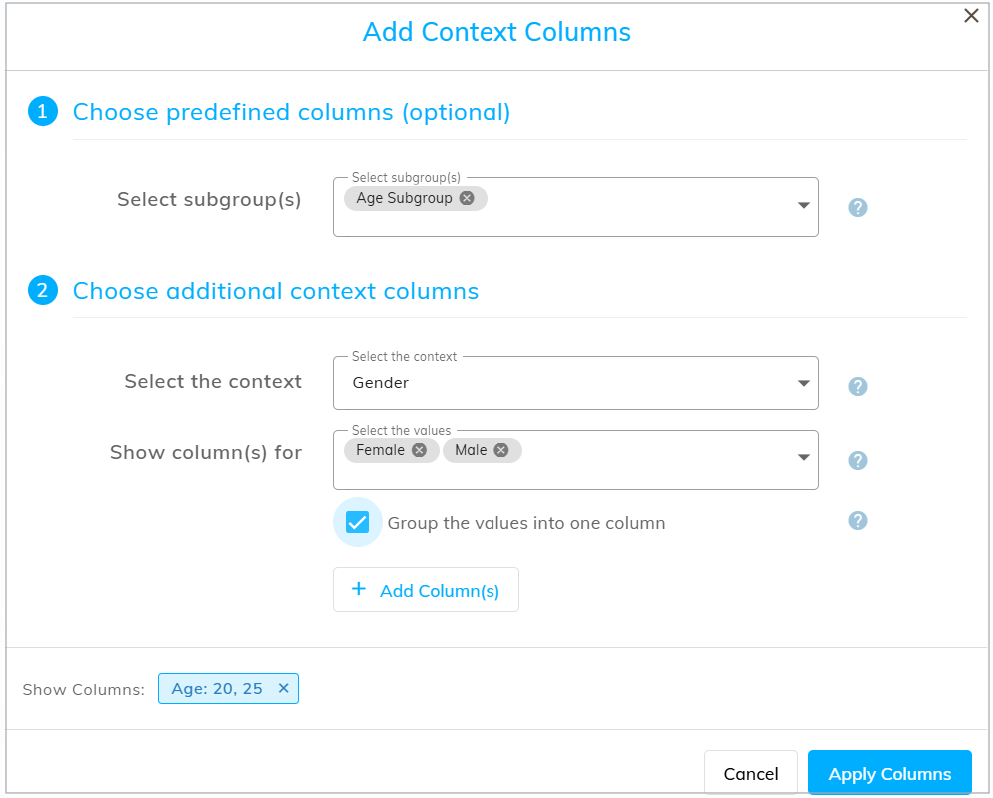
This will display the "Add Context Columns" dialog, allowing you to easily select predefined columns (if available) and add any additional context columns as needed.
Company Administrators can manage these predefined columns, known as Subgroups, in Crosstab Settings. Subgroups can be reused across different tasks in a project. Click here for more information on how to manage subgroups.
Optionally, you can group multiple context values together in a single column, by selecting the "Group the values into one column" checkbox. This can be useful for continuous variables, such as Age, where you want to group a set of values together rather than analyse each value separately.
Crosstab Filtering
It is possible to filter the crosstab results by using the Filter toolbar. Click here for more details.
Crosstab Settings
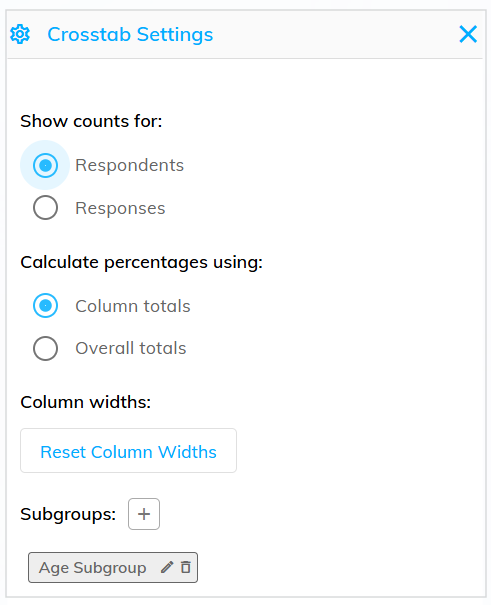
By default, the counts shown are respondent based and the percentages are calculated based on the number of respondents for each specific column. These can be edited in the Crosstab Settings by clicking on the "Cog" icon. Select "Overall totals" to calculate the percentages based on the total number of respondent across the sample.
Additionally, within Settings, a Company Administrator can create, edit, and delete subgroups for context columns.